
How to Configure Custom Refresh Rates on ONEGAMEX 2 Using CRU
September 05, 2026
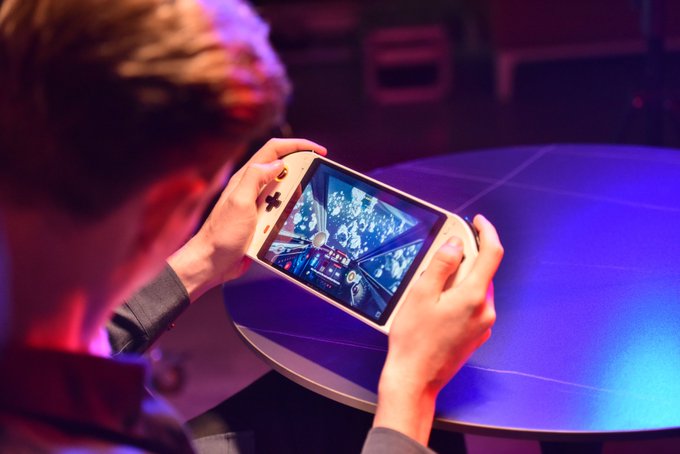
How to Set Custom Refresh Rates on ONEGAMEX 2 for Better Gaming Performance
Custom refresh rates can significantly improve the gaming experience on ONEGAMEX 2 by balancing smooth visuals, power efficiency, and gameplay responsiveness. In this guide, you'll learn how to safely configure custom refresh rates using Custom Resolution Utility (CRU).
Introduction
Discover how to improve your gaming visuals on the ONEGAMEX 2 by setting up custom refresh rates. Follow these simple steps to unlock a smoother and more enjoyable gaming experience on your device.
Download and Install Custom Resolution Utility
Begin by searching and downloading the Custom Resolution Utility (CRU). This tool will enable you to make advanced display adjustments for your ONEGAMEX 2.
Select Your Internal Display
Launch the CRU and ensure that your ONEGAMEX 2's internal display is selected. This allows you to apply custom changes specifically for your device's specifications.
Copy and Paste Current Display Settings
Within the CRU, locate the top resolution option and copy the existing display settings. This will serve as a baseline for your custom refresh rate adjustments.
Create a New Resolution Profile
Click on the "Add" button in the CRU to create a new resolution profile. Paste the copied display settings and proceed to modify the refresh rate. Experiment with different values, such as 40, to find the optimal setting for your gaming needs.
Apply Changes and Reboot
Save the new resolution profile and exit the CRU. To implement the changes, restart your ONEGAMEX 2 by rebooting the system.
Verify the New Refresh Rate
After the reboot, right-click on the desktop and access the Display Settings menu. Navigate to the Advanced Display settings and locate your newly created custom refresh rate option. Verify that the changes have been successfully applied.
Conclusion
Setting custom refresh rates on your ONEGAMEX 2 can help improve gaming smoothness, reduce power consumption, and create a more personalized gaming experience. Experiment with different refresh rate values to find the perfect balance between performance and visual quality.